The 15-Minute Quickstart Timeline
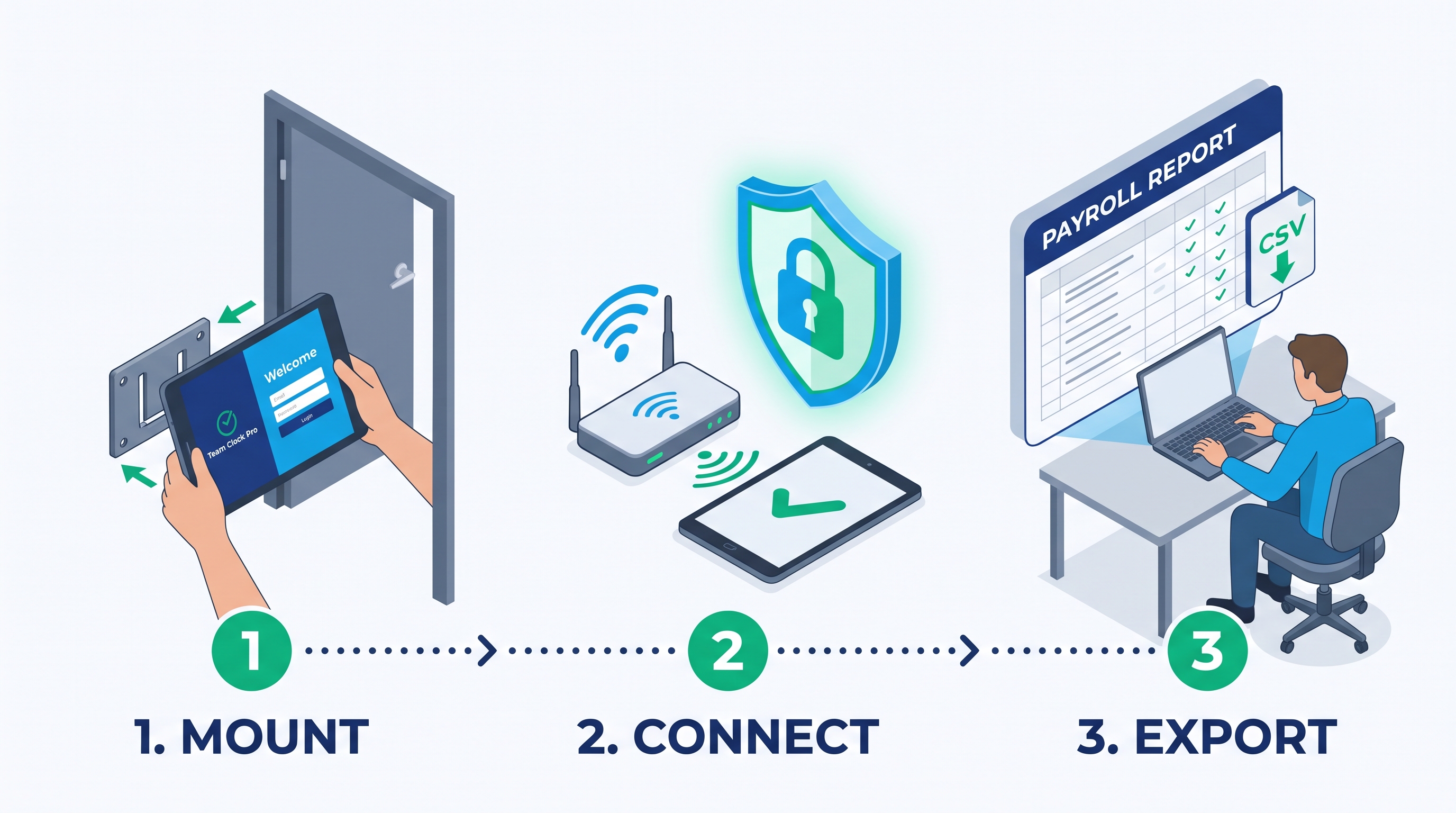
Minutes 0–5: Mount Your Everyday Tablet
Pick a high-visibility, well-lit spot near your employee entrance, breakroom, or manager’s station. 1. Use any new or existing iOS/iPadOS, Android, or Amazon FireOS tablet with a front-facing camera (even a $\$50$ Amazon Fire HD 8 or entry-level iPad works flawlessly). 2. Secure the tablet in an inexpensive VESA or flush wall-mount enclosure plugged into continuous AC power. 3. Set the tablet display auto-lock to Never (or enable iOS Guided Access / Android screen pinning) so the punch screen stays awake and ready $24/7$.
Minutes 5–10: Lock Down Your Workplace Network & Kiosk Session
We secure your punch clock at the server level so employees can never clock in from home, the parking lot, or a personal phone.
1. Share your workplace’s static public IP address during onboarding (or click Authorize Current Workplace IP in your admin setup). Our Nginx security layer immediately whitelists your location and blocks unauthorized public internet traffic.
2. Open your tablet’s web browser, enter your one-time HTTP Basic Authentication (htpasswd) credentials, and sign into your persistent shared employee station account.
3. Tap Add to Home Screen and grant browser permission to use the front-facing camera. Your tablet is now a dedicated, full-screen punch terminal.
Minutes 10–15: Load Your Roster, PINs & Department Wages
Log into the Team Clock Pro Admin Portal from your office desktop or laptop to configure your team: 1. Define Your Departments: Add the work areas that match your operations (e.g., Kitchen, Waitstaff, Salads, Front Desk, Warehouse). 2. Create Employee Profiles: Enter each team member’s full name, assign their confidential 4-Digit PIN, and add one or more Department Wage Rates (for example, assigning Jane Doe $\$18.50/\text{hr}$ in Kitchen and $\$14.00/\text{hr}$ in Salads). 3. Start Punching: Your roster appears immediately on the wall tablet. Staff can begin clocking in on their very next shift.
How Daily Floor Punching Works for Staff
We designed the wall tablet interface around a single rule: a punch should take less than 5 seconds so shift-change lines never back up.
- Select Name: The employee selects their name from the touch-optimized roster dropdown or autocomplete list.
- Tap Action & Department: Using oversized $56\text{px}$ touch targets, the employee taps their punch action (Clock In, Meal Break Start, Meal Break End, or Clock Out) and taps their active Department for the shift.
- Enter 4-Digit PIN: The employee enters their private PIN on the high-contrast numeric keypad (
JetBrains Monotabular numerals). - Instant Front-Camera Snapshot & Server Timestamp: Upon tapping Submit Punch, the tablet’s front camera captures a verification photo, our server validates the PIN and break rules, locks the official server timestamp, and flashes a Punch-In Emerald (
#10B981) confirmation banner—automatically resetting the form for the next coworker in line.
[Image/Graphic Description — 4-Step Tablet Screen Sequence]: A horizontal strip showing four sequential tablet screen states: (1) Selecting "Jane Doe" and tapping "Clock In" + "Kitchen", (2) Entering the 4-digit PIN on the keypad, (3) The instant front-camera snapshot confirmation with a green emerald badge, and (4) The Break Amber (
#F59E0B) 30-minute compliance alert ("By law, meal breaks must be at least 30 minutes. You have 8 minute(s) remaining before you can clock back in."). * Suggested Filename:daily-floor-punch-sequence.jpg* Alt Text: Four-step visual guide of the Team Clock Pro tablet interface showing department selection, PIN entry, photo capture, and meal break countdown validation
How Managers Reconcile Timecards & Run Payroll in 3 Clicks
Forget deciphering smudged ink cards or chasing down shift leads for missing hours. Team Clock Pro gives managers and bookkeepers a clean, centralized Admin & HR Dashboard:
- Step 1: Clear the Pending Adjustments Queue: If an employee forgot to punch in or out, their tablet submission appears in your Pending Punch Adjustments view. Review their target time and reason note, click Approve, and the system automatically inserts a properly sequenced punch marked with an
[Edited]audit badge. - Step 2: Filter Your Pay Period & Audit Snapshots: Open the Payroll Timesheet & Wage Report view and select your pay period start and end dates. Scan the chronological table showing each worker’s punches, security photo thumbnails, clocked-in departments, hourly rates, and auto-calculated shift wages.
- Step 3: Export to CSV or Excel: Click Export Payroll Data (CSV / XLS) to download a complete, grouped summary of hours and gross wages earned per employee and department—ready to upload straight into QuickBooks, Gusto, ADP, Paychex, or Square Payroll.
[Image/Graphic Description — Manager Payroll Dashboard View]: An annotated browser frame showing the Backdrop CMS "Payroll Timesheet & Wage Report" table view. Annotations point out the Date Range filter at the top, the Employee Profile grouping header, the Security Photo thumbnail column, the Clocked-in Department badge, the matched Hourly Rate (
$18.50), the auto-calculated Wages Earned column, an[Edited]manual adjustment indicator, and the emerald "Export CSV" button. * Suggested Filename:manager-payroll-report-view.jpg* Alt Text: Annotated view of the Team Clock Pro manager payroll report showing photo thumbnails, department hourly rates, calculated shift wages, and CSV export
Hardware & Network Prerequisites at a Glance
deployed in the sidebar or bottom callout, here is everything you need on-site: * Compatible Tablets: Apple iPad (iOS/iPadOS $13.0+$), Android Tablet (Android $8.0+$), or Amazon Fire HD Tablet (FireOS $7.0+$). * Camera: Standard built-in front-facing camera ($720\text{p}$ / $1.2\text{ MP}$ or higher) with browser camera permissions enabled. * Display: Minimum $8\text{-inch}$ touchscreen ($1024 \times 768$ resolution or higher recommended). * Network: Reliable workplace Wi-Fi connected to your business broadband router (static IP recommended for Nginx IP whitelisting, or Dynamic DNS support). * Need full technical specs and competitor comparisons? View Full System Requirements & Competitor Matrix →